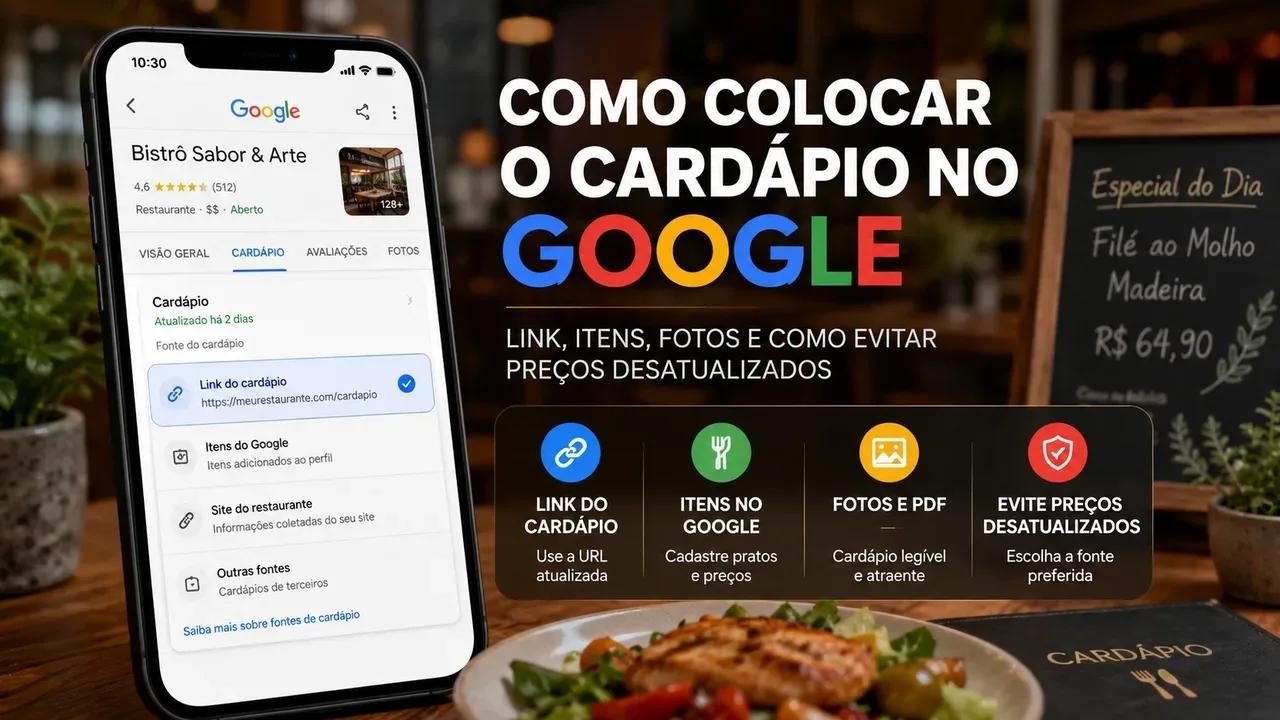
The menu displayed on Google does not come from a single place. A restaurant can have its own link, items registered directly in the Company Profile, menu photos or PDFs and even sources that Google finds on the web. It is precisely this combination that explains a common problem: the restaurant changes the link, but an old price continues to appear elsewhere on the profile.
The safest way to manage this is to treat each layer separately. First, define which page should be the public reference for your menu. Then, keep the structured items, photos, and fonts that Google shows in the Menu tab consistent. When there is a discrepancy, identify the source before editing anything.
Before editing: understand the four menu shapes that can appear
Menu link
The Menu Link is the URL you enter in your Company Profile to take the customer to an external page. In the current interface described by Google, the path goes through Edit profile, Commercial information, Contact and Menu link. After entering the URL, just save.
This format is the simplest when the restaurant already has a public menu updated on its own page. The advantage is to concentrate maintenance on a source that you control. If the price changes, you update the page and preserve the same address. A public Biomi Menu page, for example, can fulfill this role when it is the menu that the establishment actually keeps updated.
The link, however, does not automatically replace other information that may already exist in the profile. If there are items registered on Google, old photos or another menu source selected, the customer may continue to see data that is different from the URL content.
Items registered directly on Google
The Menu Editor allows you to register sections, dishes, descriptions and prices directly on the Company Profile. This data appears in the Menu area of Google Search and Google Maps and gives the customer a view of what the restaurant offers without having to open another website.
This feature is useful for establishments that want to highlight their menu within Google itself. In return, it creates a second copy that needs to be maintained. If the price changes on your public page, the item registered directly with Google should not be assumed to be automatically updated. You need to review the information in the Menu Editor.
Google advises that changes to this content may take 24 to 48 hours to appear in Search and Maps. Therefore, a newly made correction should not be immediately confused with failure.
Photos and PDF of the menu
Restaurants can also send photos of the menu or a PDF file. These materials appear in the Menu tab. Customers can also add photos, which creates another possible source for old information.
Photo and PDF are useful when the establishment has a visual menu and wants to make it available quickly. The point of attention is maintenance. An image with a printed price ages the moment the value changes. If the old version remains published, the customer can find it even if the main link is correct.
Google also offers an experimental feature that uses AI to turn a photo or PDF into a detailed menu, extracting section, dish name, description and price. As Google itself advises, the content generated needs to be reviewed before publication. This conversion does not eliminate the need to check prices and descriptions.
Menu fonts found by Google
Google can identify more than one menu source for the same restaurant. When this happens, the Menu tab may show the options found and the last updated date. The person responsible for the profile can choose the preferred font in Edit menu, in the Complete menu tab.
This point is essential for diagnosing an old menu. Just changing the manually entered URL may not resolve what the user sees if another source is selected as the preferred menu or continues to be used as a public reference.
What format to use in each situation
You already keep an updated online menu
Use the Menu Link as the main path and point to a stable public page. Choose a URL that remains the same when dishes or prices change. This avoids changing the address on Google with each menu review.
If you also want dishes and prices to appear directly on your profile, use the Menu Editor as a complementary layer. In this case, assume there are two sources that need to remain coherent.
You want customers to see dishes and prices without leaving Google
Register the detailed menu in the Menu Editor. Organize items into sections and keep description and price reviewed. This format reduces the number of clicks for those comparing options on Maps or Search.
The choice makes more sense when the team can keep the menu structured. If the restaurant changes prices very frequently and no one reviews the Company Profile, a detailed registration can become an outdated source of information.
You only have a visual menu or a PDF
Uploading a photo or PDF is a practical solution, but should not be treated as a maintenance-free solution. When changing prices, replace old material and check whether previous versions are still available. For a good quality one-page menu, the experimental menu generation feature can help transform the file into structured items, as long as the result is reviewed before publishing.
Google has already found other fonts for your menu
Open Edit Menu and check the Full Menu tab. If there is more than one source, compare the update date and content of each. Select your preferred font
which represents the establishment's current menu.
The preferred font helps guide which menu appears as public information, but it is not a reason to abandon maintenance of the other areas of the profile. Structured items and photos continue to warrant review when they contain old information.
How to add or change the menu link
Open your Company Profile with the account that manages it
Editing must be done in the account associated with the Company Profile. On your computer, Google's current documentation advises you to find the profile through Search and open Edit Profile.
Go to Contact and look for Menu link
Within Business Information, open Contact and find Menu Link. Enter the public address where the menu can be accessed and save.
The URL must take the customer directly to the menu. Avoid using a generic page that requires searching through the menu among various buttons, especially if you already have a specific page for this purpose.
Test the URL as a client
After saving, open the page without being logged into the restaurant panel. Check that it loads on your cell phone, that it does not require authentication and that it shows the correct menu. Google may point to a valid URL, but that doesn't prevent the page from being outdated, broken, or redirecting to other content.
How to register and edit items directly on Google
Use Edit menu
In the Company Profile, select Edit menu. Google lets you add a section, create items within it, and edit or delete existing content. Some companies may also be given the option to copy data from an existing source and then adjust sections, items, descriptions and prices.
Organize the menu by real sections
Use sections that correspond to the way the customer chooses at the restaurant, such as starters, main dishes, desserts and drinks. Organization makes reading easier and also reduces the risk of a price being updated in one place and forgotten in another.
Review the price before saving
When the value is important data for the customer's decision, treat the price registered on Google as operational information. If the restaurant changed the price in the internal system, in the PDF or in the online menu, include the Company Profile in the same update routine.
Wait for the change to propagate
Google provides a 24-48 hour window for Menu Editor changes to appear in Search and Maps. Please check again after this period before concluding that the edit did not work.
How to use photos and PDF without keeping an old menu visible
Remove self-published material when it expires
In the Edit Menu area, open Menu Photos. Google allows you to delete a photo sent by the establishment itself. When replacing a menu, check if the previous file still appears and remove what should no longer guide the customer.
Differentiate the owner's photo from the customer's photo
Customers can add photos of the menu. If an image uploaded by a user is obsolete or incorrect, Google's guidance is to suggest removal and publish a current image from the restaurant. Removal of third-party content depends on Google review; therefore, submitting a correct version helps reduce reliance on an old photograph while the request is reviewed.
Review any AI-generated menu
If you use trial conversion from photo or PDF to structured menu, compare the result with the original material before publishing. Price, dish name and description are precisely the fields in which a reading error can turn into incorrect commercial information.
How to choose the preferred font when Google finds more than one menu
When there are multiple sources, open the Company Profile, select Edit menu and enter the Full menu tab. There, Google can show the options found and when each one was updated. Select the font that corresponds to the current menu and save.
This feature solves a scenario that often confuses owners: the official URL is correct, but Google continues to display another menu. In this situation, the problem may not be with the Link field in the menu. It may be in choosing the public font used in the Menu tab.
After selecting your preferred source, check your customer profile and compare what appears in Search and Maps. If there is still a discrepancy, proceed to investigate structured items, photos and website transcription.
Why an old price might keep appearing
The price is for an item registered in the Menu Editor
If the value appears next to the name of a dish within the Google structured area, edit or delete that item in the Menu Editor. Changing only the external page does not correct a copy registered directly in the profile.
Price is in an old photo or PDF
If the value appears inside an image, identify who published the file. If it was the restaurant itself, remove the old version and send the current one. If you were a customer, use the reporting or suggested removal mechanism when content is inappropriate or incorrect, and post an updated menu.
Google is using another menu font
When the Menu tab shows more than one font, choose the preferred one. Check the update date and prioritize the address the restaurant actually maintains. This is different from simply changing the menu link in the Contact area.
The value was transcribed from the restaurant's website
Google informs that it can transcribe menu data from the company's website to the Company Profile. If the transcribed information is wrong, the first step is to correct the content on the page itself and also edit or delete the incorrect item on Google when this option is available.
The Menu Editor documentation also points to an option to disable transcription. The Search Console material currently linked to this option describes a broad blocking of crawled content from appearing in local results, applied on a per-domain basis. Therefore, this feature should not be used as a casual correction of a single price. It may affect other content on the domain and Google advises that removal may take up to 30 days.
The change is still being processed
If you edited items directly in the menu a few hours ago, wait for the window indicated by Google. For changes to the Menu Editor, the documentation says 24 to 48 hours to reflect in Search and Maps.
A practical diagnosis for the wrong menu on Google
Find out where old information appears
Open your Company Profile as a customer would. Note if the wrong data is in the button that opens an external page, in a dish with a price within Google, in a photo, in a PDF or in the complete Menu from another source. The point where the error appears indicates which tool needs to be edited.
Correct the source first, which should be official
If your main menu is on a public page, update that page before making any copies. If the establishment's reference is a PDF, generate the new version. If the menu is managed within Google itself, correct the structured items.
Delete old copies you control
After updating the main source, review the Company Profile. Delete old photos sent by the company, correct structured items and confirm the menu link. The fewer conflicting versions you control, the less chance an old price will continue to be found.
Choose preferred font when there are alternatives
If Google found multiple menus, select the font that matches the current menu. This step is especially important when the old source is from a provider or page that the restaurant no longer uses.
Redo the conference after the update deadline
Don't just validate within the editing panel. Check out the public preview in Search and Maps after the change has had time to process. If the error persists, go back to the diagnostics and identify which layer continues to diverge.
How to keep the menu updated with less rework
Have a main and stable source
Choose a public menu that works as a reference. Your own page or a public menu page that you manage must use a stable address and concentrate changes to price, availability and description.
Treat Google as distribution, not actual origin
The Business Profile is an important channel, but it shouldn't be the only place where the restaurant knows what the current price is. Keep the main information in a system or page under the establishment's control and replicate it to Google when necessary.
Avoid relying solely on images with prices
Menu photos help the customer, but are more difficult to maintain when prices change. If your restaurant changes prices frequently, combine the image with an updatable public page and, if it makes sense, structured items on Google.
Include the Company Profile in the price change routine
When there are adjustments, revision of dishes or changes in availability, also check Google. A simple check routine reduces the time between the restaurant working on one price and the customer finding another.
Perform a periodic review of public preview
What matters is what the customer sees. Periodically, open the profile in Search and Maps and check the link, items, photos and preferred source. This check is especially useful after switching menu platforms, changing domains, new PDFs, or broad pricing updates.
What if the Edit menu button doesn't appear
Google says that Menu Editor is aimed at food and beverage companies. There is also an important exception: when the menu is provided by the Business Profile API, the feature may not appear in Business Profile or Google Search.
If the establishment is a food establishment and you still don't see the option, confirm that you are on the correct account, that the profile is verified and that the menu management is not being managed by integration or provider. The interface can also vary between Search and Google Maps, so it's worth checking both ways before concluding that the feature has been removed.
The best arrangement depends on who will maintain the menu
For most restaurants that already have an updated menu page, Menu Link is the simplest foundation. The Menu Editor adds convenience for those who want to display dishes and prices within Google, as long as there is a review routine. Photos and
PDFs work as visual support, but they need to be replaced as they age. And when Google finds multiple sources, choosing the preferred menu prevents an old source from continuing to take the place of the current reference.
The decisive point is not to treat the Google menu as a single field. When an old price appears, identify the layer it is in, correct the correct source and only then evaluate the public result. This method is more reliable than exchanging links repeatedly without knowing where the information was obtained from.