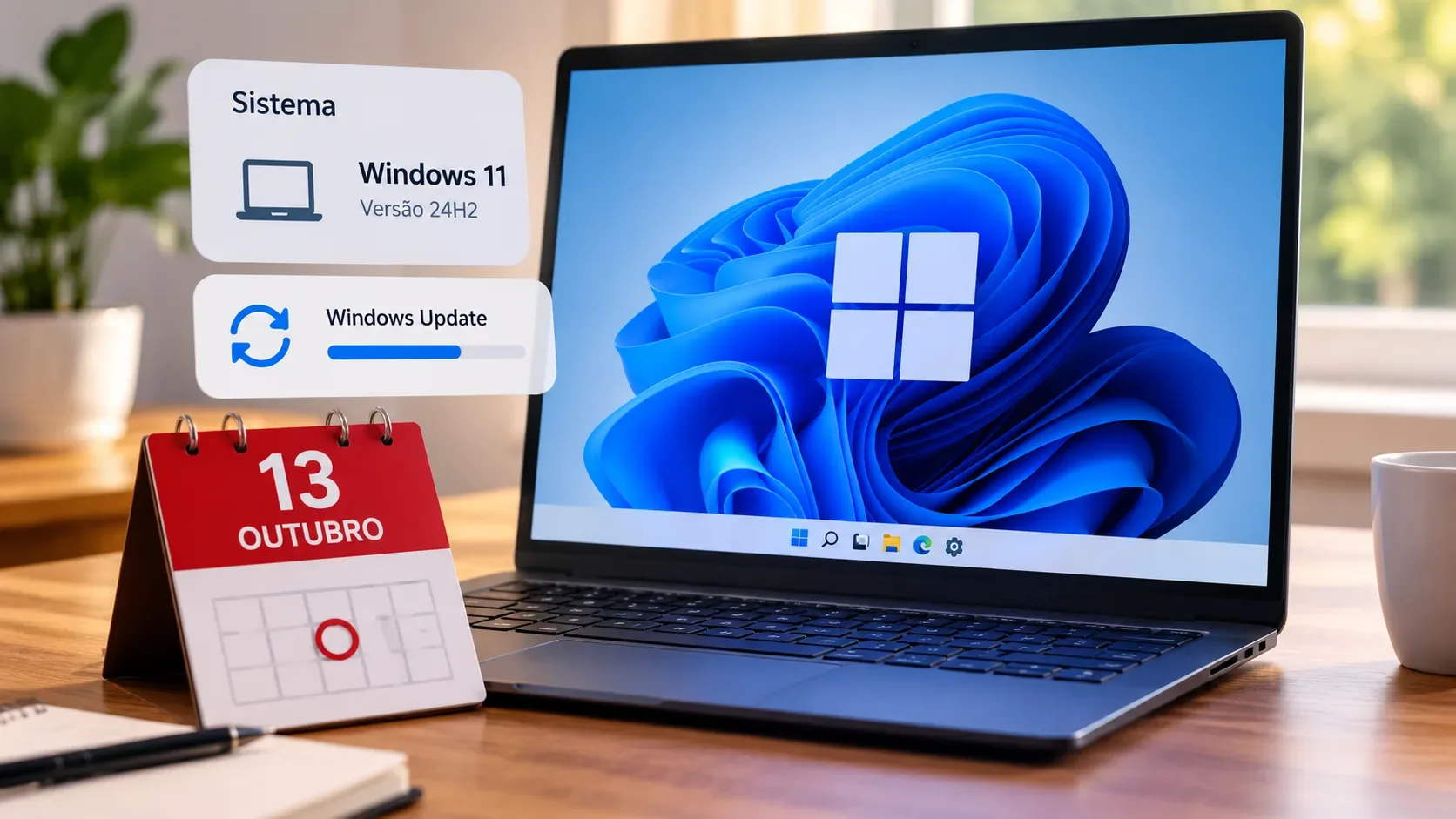
If your PC is running Windows 11 24H2 Home or Pro, October 13, 2026 is the date that requires attention. Microsoft states that these editions reach end of updates on that date. After that, they stop receiving fixes for known issues, time zone updates, technical support, and monthly security and preview updates that include protection against recent threats. The computer does not stop working the next day, but it moves onto a Windows version that is outside its normal servicing cycle.
Before updating, confirm two details: the Windows edition and the installed version. This matters because the October 13, 2026 deadline is the notice Microsoft highlights for Windows 11 24H2 Home and Pro. The Enterprise and Education editions of 24H2 remain supported through October 12, 2027, so business or academic computers may follow a different schedule and IT administrator policies.
What changes on October 13, 2026
| Scenario | Status | Next action |
|---|---|---|
| Windows 11 24H2 Home or Pro | Updates end on October 13, 2026. | Check Windows Update and move to 25H2 when it is offered to the device. |
| Windows 11 24H2 Enterprise or Education | The 24H2 servicing cycle continues through October 12, 2027. | Follow the organization or IT administrator schedule and policies. |
| Existing PC running Windows 11 24H2 | 25H2 is the feature update intended for this path. Microsoft also lists 26H1, but says it was created for certain new devices and is not offered as an in-place update from 24H2 or 25H2. | Do not look for 26H1 as a manual replacement for 24H2 on an existing PC. Use the official update offered for the device. |
For Home and Pro PCs that are not managed by an IT department, Microsoft says the Windows 11 25H2 update is delivered automatically when the device is ready. The user can still choose when to restart or postpone the restart.
How to tell whether your PC is on Windows 11 24H2
The most complete route is Start > Settings > System > About. Under Windows specifications, check at least these two fields:
- Edition: shows whether the system is Home, Pro, Enterprise, Education, or another edition.
- Version: if it shows 24H2, the computer is running that Windows 11 version.
There is also a quick shortcut. Type winver in taskbar Search and press Enter. The window shows the Windows version and OS build. To determine which support deadline applies to your computer, also check the edition under Settings > System > About.
How to update from 24H2 to 25H2
- Open Settings > Windows Update.
- Select Check for updates.
- If the device is ready, look for the option to download and install Windows 11, version 25H2.
- Complete the download and installation, then restart when prompted.
- After the restart, return to Settings > System > About or run winver to confirm that the version changed to 25H2.
The move from 24H2 to 25H2 is technically simpler than a full operating system base change. Microsoft explains that the two versions share the same core operating system and the same main system files. 25H2 features may already be present in an inactive state on an up-to-date 24H2 installation and are enabled by a small enablement package. For the update through this package, Microsoft states that the device must restart.
What to do if 25H2 does not appear
Not seeing 25H2 immediately does not, by itself, mean that the computer is incompatible. Microsoft rolls out feature updates in stages and may delay an offer to a device when it identifies a compatibility concern. Before using a manual method, keep 24H2 current with the latest cumulative updates, restart the computer, and check Windows Update again.
- Personal Home or Pro PC: keep checking Windows Update. Microsoft says unmanaged devices receive 25H2 automatically when they are ready.
- Company, school, or university PC: the offer may be controlled by IT policies. In that case, do not bypass device management and follow the organization’s guidance.
- Official manual update: Microsoft provides Windows Update Assistant to manually install the latest feature update on a compatible PC that has not received it automatically. The tool is supported on x86/64 PCs and does not run on ARM-based PCs.
Avoid modified images, third-party installers, or packages from unknown sources simply to force an earlier version change. For a typical personal computer, Windows Update is the main channel and is also where Microsoft indicates whether the feature update is ready for that device.
What to prepare before installing
- Back up important files. Microsoft recommends keeping a backup before installing a new Windows version.
- Check free storage. Windows checks storage before installation. Microsoft says feature updates can typically require about 6 GB to 11 GB or more of free space, depending on the update path and installed content.
- Keep a laptop or tablet connected to power. Windows Update guidance recommends leaving portable devices plugged in so an installation is not interrupted by low battery.
- Install pending updates. A fully updated 24H2 installation reduces the chance that a prerequisite for the package that enables 25H2 is missing.
- Set aside time for a restart. The update to 25H2 requires a restart.
25H2 or 26H1: which version should you look for?
For an existing PC already running Windows 11 24H2, the practical answer is 25H2. Microsoft’s 24H2 release health page directs these devices to 25H2. Microsoft also lists version 26H1 in the current Windows 11 release information, but explicitly states that it was designed for new devices with certain hardware introduced in 2026 and is not offered as an in-place update to existing PCs running 24H2 or 25H2.
Therefore, the existence of 26H1 does not mean 25H2 is obsolete for your computer. For the upgrade path of an existing 24H2 machine, the 25H2 offer in Windows Update is the correct reference.
Quick checklist before October 13
- Open Settings > System > About and confirm edition and version.
- If it is Home or Pro on 24H2, treat October 13, 2026 as the end of the normal update cycle for that version.
- Open Settings > Windows Update and check whether 25H2 is already available.
- Back up important files and check free storage and power before installation.
- Update, restart, and confirm the new version through Settings > System > About or winver.
- If the PC is managed by an organization, follow IT policy instead of forcing the update.
Sources and references
- Microsoft Learn: Windows 11, version 24H2 known issues and notifications
- Microsoft Learn: Windows 11 release information
- Microsoft Support: Find information about your Windows device
- Microsoft Support: KB5054156, feature update to Windows 11 version 25H2 by enablement package
- Microsoft Support: Windows Update Assistant
- Microsoft Support: Windows Update FAQ